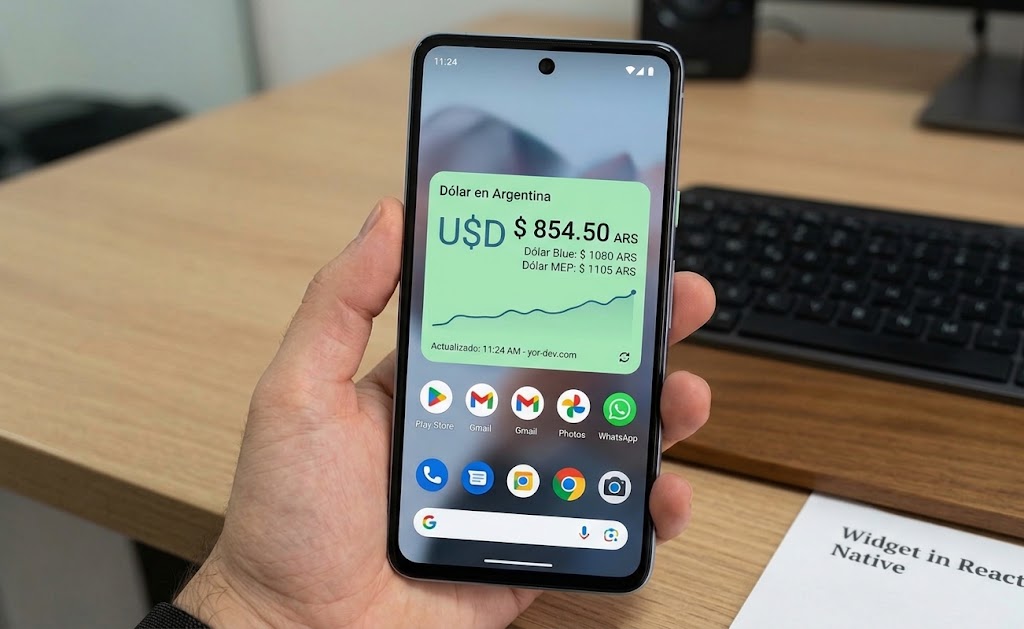
Introduction
In this comprehensive tutorial, we’ll build a cross-platform mobile application that displays real-time Argentine peso to dollar exchange rates using a native Android widget. The app will feature:
- Real-time exchange rate display from the DolarAPI
- Native Android widget showing current rates
- Widget interaction with a click counter
- Bi-directional communication between the widget and the React Native app
This project combines React Native for the UI layer with native Kotlin code for widget functionality, demonstrating powerful cross-platform mobile development patterns.
Demo Video
Watch the widget in action:
In this demo, you’ll see:
- The React Native app displaying live exchange rates
- The Android home screen widget showing the dollar value
- Clicking the widget button to increment the check counter
- The counter updating both in the widget and the app
Prerequisites & Initial Setup
Before starting, ensure you have:
- Node.js installed
- Expo CLI set up
- Android development environment configured
- Basic knowledge of React Native and Kotlin
Create the Project
Start by creating a new Expo project:
npx create-expo-app@latest my-widget-app --template blank
Navigate to your project directory and run it:
cd my-widget-app
npm run android
Note: If you don’t see your android or ios folder, run:
npx expo prebuild
Step 1: Setting Up Services & Utilities
API Service Layer
Create services/apiCall.ts to handle API requests:
export default async function apiGetCall(url: string){
    try{
        const response = await fetch(url)
        const json = await response.json();
        return json;
    }
    catch(error){
        console.error('Error fetching API:', error);
        throw error;
    }
}
Currency Formatting Utility
Create utils/utils.ts for currency formatting:
export function setMoneyFormat(value: number): string {
    return value.toLocaleString('es-AR', {
        style: 'currency',
        currency: 'ARS'
    });
}
Step 2: Building the Main React Native App
Update your App.tsx to display dollar exchange rates:
import { StatusBar } from 'expo-status-bar';
import { StyleSheet, Text, View, NativeModules, Pressable, ScrollView } from 'react-native';
import { SafeAreaView } from 'react-native-safe-area-context';
import { useEffect, useState } from 'react';
import apiGetCall from './services/apiCall';
import { setMoneyFormat } from './utils/utils';

const { CustomNativeDollarView } = NativeModules;

export default function App() {

  const [dolars, setDolars] = useState([]);
  const [countClicks, setCounterClicks] = useState(0);

  // TODO: Update exchange rates every 5 minutes
  const fetchDolarQuote = async () => {
    try{
        const data = await apiGetCall("https://dolarapi.com/v1/dolares")
        console.log("Data fetched:", data);
        setDolars(data);
    }catch(error){
      console.error("Error fetching data:", error);
    }
  }

  // Retrieve check count from widget (widget-to-app communication)
  const getCheckCountLocal = async () => {
    const thisCount = await DolarCheckWidget.getCheckCount();
    setCounterClicks(thisCount);
  };

  const sendPriceToWidget = async (price) => {
    try {
      CustomNativeDollarView?.dataToShow( `${price}` );
    } catch (error) {
      console.error("Error sending price to widget:", error);
    }
  }

  useEffect(() => {
    fetchDolarQuote();
    getCheckCountLocal();
  }, []);

  // Send data to native widget
  useEffect(() => {
    if (dolars.length > 0) {
        const price = dolars[0].compra;
        sendPriceToWidget(price);
    }
  }, [dolars]);

  return (
    <SafeAreaView style={{ flex: 1 }}>
      <View style={styles.container}>
      <Text style={[styles.cardTitle, {textAlign: 'center'}]}>counter: {countClicks}</Text>
      <Pressable onPress={() => {
        getCheckCountLocal();
      }}>
        <Text style={[styles.cardTitle, {textAlign: 'center', color: 'blue'}]}>Get counter from Widget</Text>
      </Pressable>

      <Pressable onPress={() => {
        sendPriceToWidget(dolars[0].compra);
      }}>
        <Text style={[styles.cardTitle, {textAlign: 'center', color: 'blue'}]}>Send to widget</Text>
      </Pressable>

      <ScrollView style={{marginTop: 10}}>
      {dolars.map((dolar, index) => (
        <View style={styles.row} key={index}>
          <View style={styles.card}>
          <Text style={styles.cardTitle}>{dolar.nombre}</Text>
          <View style={styles.cardContent}>
            <View style={styles.dataItem}>
              <Text style={styles.label}>I'm selling at</Text>
              <Text style={[styles.value, styles.incoming]}>
                {setMoneyFormat(dolar.compra)}
              </Text>
            </View>
            <View style={styles.divider} />
            <View style={styles.dataItem}>
              <Text style={styles.label}>They're selling at</Text>
              <Text style={[styles.value, styles.outgoing]}>
                {setMoneyFormat(dolar.venta)}
              </Text>
            </View>
            <View style={styles.divider} />
            <View style={styles.dataItem}>
              <Text style={styles.label}>Average</Text>
              <Text style={[styles.value, styles.media]}>
                {setMoneyFormat((dolar.venta + dolar.compra)/2)}
              </Text>
            </View>
          </View>
          </View>
          </View>
      ))}
      </ScrollView>
      <StatusBar style="auto" />
    </View>
    </SafeAreaView>
  );
}

const styles = StyleSheet.create({
  container: {
    flex: 1,
    backgroundColor: '#f8fafc',
    paddingHorizontal: 12,
    justifyContent: 'center',
  },
  loadingContainer: {
    flex: 1,
    justifyContent: 'center',
    alignItems: 'center',
    backgroundColor: '#f8fafc',
  },
  row: {
    flexDirection: 'row',
    justifyContent: 'space-between',
    marginBottom: 12,
    gap: 12,
  },
  card: {
    flex: 1,
    backgroundColor: '#fff',
    borderRadius: 12,
    padding: 14,
    borderWidth: 1,
    borderColor: '#e2e8f0',
    shadowColor: '#000',
    shadowOffset: { width: 0, height: 1 },
    shadowOpacity: 0.05,
    shadowRadius: 2,
    elevation: 1,
  },
  cardTitle: {
    fontSize: 13,
    fontWeight: '600',
    color: '#475569',
    marginBottom: 10,
    textTransform: 'uppercase',
    letterSpacing: 0.5,
  },
  cardContent: {
    flexDirection: 'row',
    alignItems: 'center',
    justifyContent: 'space-between',
  },
  dataItem: {
    flex: 1,
    alignItems: 'center',
  },
  divider: {
    width: 1,
    height: 35,
    backgroundColor: '#e2e8f0',
    marginHorizontal: 8,
  },
  label: {
    fontSize: 11,
    color: '#94a3b8',
    marginBottom: 4,
    fontWeight: '500',
    textTransform: 'uppercase',
    letterSpacing: 0.3,
  },
  value: {
    fontSize: 15,
    fontWeight: '700',
  },
  incoming: {
    color: '#10b981',
  },
  outgoing: {
    color: '#ef4444',
  },
  media: {
    color: 'orange',
  },
});
Step 3: Creating the Android Widget Layout
Widget XML Layout
Create the widget UI in android/app/src/main/res/layout/dollar_view.xml:
<?xml version="1.0" encoding="utf-8"?>
<RelativeLayout xmlns:android="http://schemas.android.com/apk/res/android"
    android:layout_width="match_parent"
    android:layout_height="wrap_content"
    android:padding="16dp"
    android:background="@color/colorGreenLight"
    android:gravity="center">

    <TextView
        android:id="@+id/loading"
        android:layout_width="wrap_content"
        android:layout_height="wrap_content"
        android:text="Loading..."
        android:textSize="16sp"
        android:textColor="#000" />

    <TextView
        android:id="@+id/dolarValue"
        android:layout_below="@id/loading"
        android:layout_width="wrap_content"
        android:layout_height="wrap_content"
        android:layout_marginTop="8dp"
        android:text="Dolar today"
        android:textColor="#000000"
        android:textSize="14sp" />

    <TextView
        android:id="@+id/counterTimes"
        android:layout_below="@id/dolarValue"
        android:layout_width="wrap_content"
        android:layout_height="wrap_content"
        android:layout_marginTop="8dp"
        android:text="Checked: 0"
        android:textColor="#000000"
        android:textSize="14sp" />

    <Button
        android:id="@+id/btnAction"
        android:layout_below="@id/counterTimes"
        android:layout_width="wrap_content"
        android:layout_height="wrap_content"
        android:text="@string/click_button"
        android:layout_marginTop="16dp"/>
</RelativeLayout>
Step 4: Implementing the Widget Provider
DolarCheckWidget Class
Create the widget provider in android/app/src/main/java/com/anonymous/mywidgetapp/DolarCheckWidget.kt:
package com.anonymous.mywidgetapp

import android.app.PendingIntent
import android.appwidget.AppWidgetManager
import android.appwidget.AppWidgetProvider
import android.content.ComponentName
import android.content.Context
import android.content.Intent
import android.util.Log
import android.widget.RemoteViews

class DolarCheckWidget : AppWidgetProvider() {

    companion object {
        private const val ACTION_INCREMENT =
            "com.yourapp.ACTION_INCREMENT"
        private const val PREFS_NAME = "DolarWidgetPrefs"
        private const val KEY_COUNT = "checkCount"
        private const val KEY_DOLAR = "dolarValue"
    }

    override fun onUpdate(
        context: Context,
        appWidgetManager: AppWidgetManager,
        appWidgetIds: IntArray
    ) {
        Log.i("RnDolar", "Widget update triggered")
        val prefs = context?.getSharedPreferences(
            KEY_DOLAR,
            Context.MODE_PRIVATE
        )

        val dolarValue = prefs?.getString(KEY_DOLAR, "0")
        Log.i("RnDolar", "Dolar Value in widget: $dolarValue")

        appWidgetIds.forEach { widgetId ->
            val loadingViews = RemoteViews(context.packageName, R.layout.dollar_view)
            loadingViews.setTextViewText(R.id.loading, " ")
            loadingViews.setTextViewText(R.id.dolarValue, dolarValue)
            appWidgetManager.updateAppWidget(widgetId, loadingViews)
            updateWidget(context, appWidgetManager, widgetId)
        }
    }

    override fun onReceive(
        context: Context,
        intent: Intent
    ) {
        super.onReceive(context, intent)
        if (intent.action == ACTION_INCREMENT) {
            incrementCounter(context)
            updateAllWidgets(context)
        }
    }

    private fun incrementCounter(context: Context) {
        val prefs = context.getSharedPreferences(
            PREFS_NAME,
            Context.MODE_PRIVATE
        )
        val currentCount = prefs.getInt(KEY_COUNT, 0)
        prefs.edit()
            .putInt(KEY_COUNT, currentCount + 1)
            .apply()
    }

    private fun updateWidget(
        context: Context,
        appWidgetManager: AppWidgetManager,
        widgetId: Int
    ) {
        val prefs = context.getSharedPreferences(
            PREFS_NAME,
            Context.MODE_PRIVATE
        )
        val count = prefs.getInt(KEY_COUNT, 0)
        val views = RemoteViews(
            context.packageName,
            R.layout.dollar_view
        )

        views.setTextViewText(
            R.id.counterTimes,
            "Checked: $count times"
        )

        val incrementIntent = Intent(
            context,
            DolarCheckWidget::class.java
        ).apply {
            action = ACTION_INCREMENT
        }

        val pendingIntent = PendingIntent.getBroadcast(
            context,
            widgetId,
            incrementIntent,
            PendingIntent.FLAG_UPDATE_CURRENT or
                PendingIntent.FLAG_IMMUTABLE
        )

        views.setOnClickPendingIntent(
            R.id.btnAction,
            pendingIntent
        )

        appWidgetManager.updateAppWidget(widgetId, views)
    }

    private fun updateAllWidgets(context: Context) {
        val appWidgetManager =
            AppWidgetManager.getInstance(context)
        val widgetComponent = ComponentName(
            context,
            DolarCheckWidget::class.java
        )
        val widgetIds = appWidgetManager.getAppWidgetIds(
            widgetComponent
        )
        widgetIds.forEach { widgetId ->
            updateWidget(context, appWidgetManager, widgetId)
        }
    }
}
Step 5: Widget Configuration
Widget Configuration File
Create android/app/src/main/res/xml/dolar_widget_info.xml:
<?xml version="1.0" encoding="utf-8"?>
<appwidget-provider
    xmlns:android="http://schemas.android.com/apk/res/android"
    android:initialLayout="@layout/dollar_view"
    android:minWidth="120dp"
    android:minHeight="120dp"
    android:updatePeriodMillis="86400000"
    android:resizeMode="horizontal|vertical"
    android:widgetCategory="home_screen"
    android:description="@string/widget_description" />
Update AndroidManifest.xml
Add the widget receiver declaration inside the <application> tag in AndroidManifest.xml:
<!-- Widget receiver declaration -->
<receiver
    android:name=".DolarCheckWidget"
    android:exported="true">
    <intent-filter>
        <action android:name="android.appwidget.action.APPWIDGET_UPDATE" />
    </intent-filter>
    <meta-data
        android:name="android.appwidget.provider"
        android:resource="@xml/dolar_widget_info" />
</receiver>
Step 6: Creating the React Native Module
DolarCheckWidgetModule
Create the bridge module in android/app/src/main/java/com/anonymous/mywidgetapp/DolarCheckWidgetModule.kt:
package com.anonymous.mywidgetapp

import android.appwidget.AppWidgetManager
import android.content.ComponentName
import android.content.Context
import android.content.SharedPreferences
import com.facebook.react.bridge.ReactApplicationContext
import com.facebook.react.bridge.ReactContextBaseJavaModule
import com.facebook.react.bridge.ReactMethod
import com.facebook.react.bridge.Promise

class DolarCheckWidgetModule(private val context: ReactApplicationContext)
    : ReactContextBaseJavaModule(context) {

    companion object {
        private const val PREFS_NAME = "DolarWidgetPrefs"
        private const val KEY_DOLAR = "dolarValue"
        private const val KEY_COUNT = "checkCount"
    }

    override fun getName(): String = "DolarCheckWidget"

    @ReactMethod
    fun dataToShow(dolarInfo: String) {
        val prefs: SharedPreferences =
            context.getSharedPreferences(PREFS_NAME, Context.MODE_PRIVATE)
        prefs.edit().putString(KEY_DOLAR, dolarInfo).apply()

        val widgetManager = AppWidgetManager.getInstance(context)
        val widget = ComponentName(context, DolarCheckWidget::class.java)
        widgetManager.notifyAppWidgetViewDataChanged(
            widgetManager.getAppWidgetIds(widget),
            R.id.dolarValue
        )
    }

    @ReactMethod
    fun getCheckCount(promise: Promise) {
        try {
            val prefs = reactApplicationContext.getSharedPreferences(
                PREFS_NAME,
                Context.MODE_PRIVATE
            )
            val count = prefs.getInt(KEY_COUNT, 0)
            promise.resolve(count)
        } catch (error: Exception) {
            promise.reject(
                "GET_CHECK_COUNT_ERROR",
                "Unable to retrieve the check count from widget",
                error
            )
        }
    }
}
Step 7: Registering the Module
DolarCheckWidgetPackage
Create the package file in android/app/src/main/java/com/anonymous/mywidgetapp/DolarCheckWidgetPackage.kt:
package com.anonymous.mywidgetapp

import com.facebook.react.ReactPackage
import com.facebook.react.bridge.NativeModule
import com.facebook.react.bridge.ReactApplicationContext
import com.facebook.react.uimanager.ViewManager

class DolarCheckWidgetPackage : ReactPackage {

    override fun createNativeModules(reactContext: ReactApplicationContext):
            List<NativeModule> {
        return listOf(DolarCheckWidgetModule(reactContext))
    }

    override fun createViewManagers(reactContext: ReactApplicationContext):
            List<ViewManager<*, *>> {
        return emptyList()
    }
}
Update MainApplication.kt
Add the package to your MainApplication.kt:
// In the packages list within MainApplication.kt
add(DolarCheckWidgetPackage())
How It All Works Together
Communication Flow
- App → Widget: The React Native app fetches exchange rate data and sends it to the Kotlin module via the native bridge (
dataToShow) - Widget → App: When users click the widget button, the counter increments and the app can retrieve the count (
getCheckCount) - Data Persistence: SharedPreferences stores both the exchange rate and click counter data
Key Features
- Real-time Updates: Exchange rates update when the app is opened
- Widget Persistence: Counter data survives app restarts
- Two-way Communication: The widget can trigger app behavior and vice versa
- Native Performance: Widget uses Android’s native framework for optimal performance
Next Steps & Enhancements
Consider these improvements:
- Auto-refresh: Implement scheduled background updates every 5 minutes
- iOS Support: Add AppKit extension for iOS widgets
- Notifications: Alert users when exchange rates change significantly
- Multiple Currencies: Expand to show additional currency pairs
- Offline Support: Cache exchange rates for offline access
Conclusion
You’ve successfully built a cross-platform widget application that demonstrates advanced React Native patterns combined with native Android development. This project showcases how to bridge the gap between JavaScript and native code, enabling rich mobile experiences that users expect from native applications.
The architecture you’ve created is scalable and maintainable, making it easy to add new features or extend functionality in the future.